> ## Documentation Index
> Fetch the complete documentation index at: https://guide.chatwize.ai/llms.txt
> Use this file to discover all available pages before exploring further.

# Install on your site

> Add the chat widget to any website with one snippet.

Putting your chatbot on your website is one script tag. You get it from the
**Go live** page.

## Where to find it

<Steps>
  <Step title="Open your chatbot">
    From **Chatbots**, click the chatbot you want to publish.
  </Step>

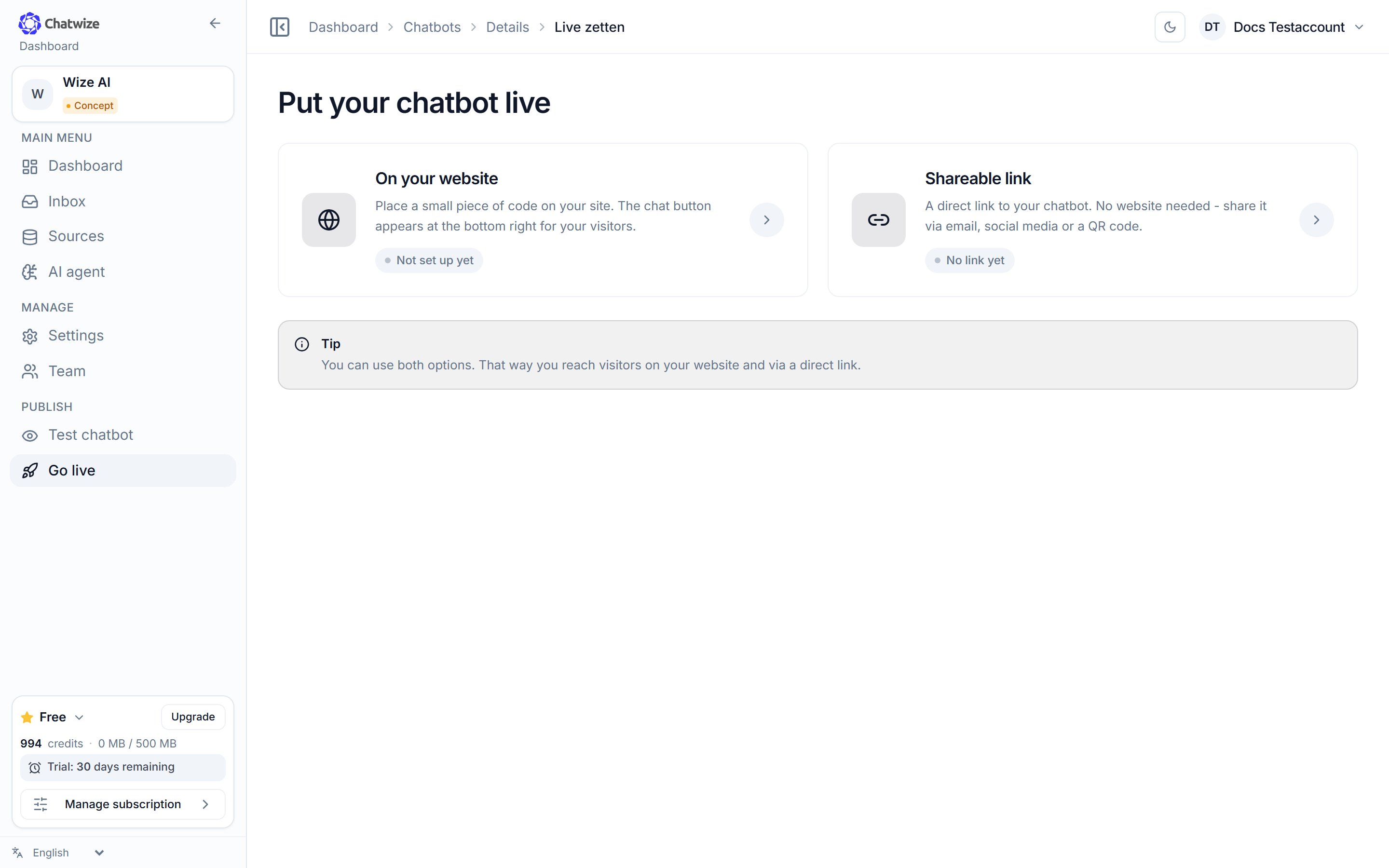
  <Step title="Open Go live">
    In the left sidebar, under **Publish**, click **Go live**.
  </Step>

  <Step title="Open 'On your website'">
    Click **On your website**, enter your website address and click **Generate
    code**. Your embed code appears; copy it.
  </Step>
</Steps>

<Frame caption="Go live → On your website is where your embed code lives.">
  <img src="https://mintcdn.com/chatwize-b26e5811/RuMGj4tlfho4YYoG/images/en-install.png?fit=max&auto=format&n=RuMGj4tlfho4YYoG&q=85&s=d65a5704c33086a3c5c2b918dd312f52" alt="Chatwize Go live page with the On your website option" width="2880" height="1800" data-path="images/en-install.png" />
</Frame>

## Your code

The code looks like this, with your own key in place of
`wk_YOUR_WIDGET_KEY`:

```html theme={null}
<script src="https://eu.chatwize.ai/embed.js" data-widget-key="wk_YOUR_WIDGET_KEY" defer></script>
```

<Warning>
  Use the code exactly as you receive it. The widget key belongs to the website
  address you entered. To show the chatbot on a second domain, add that address on
  the **Go live** page.
</Warning>

## Where to paste it

Paste the code just before the closing `</body>` tag on every page where you want
the chat to appear. Thanks to `defer`, the widget waits until your page has
loaded.

<AccordionGroup>
  <Accordion title="Your own HTML site">
    Add the code before the closing body tag in your template or layout file, so
    it loads on every page.
  </Accordion>

  <Accordion title="WordPress">
    Use a plugin that lets you insert code in the footer, or add it to your
    theme's footer template.
  </Accordion>

  <Accordion title="Shopify">
    Add the code to `theme.liquid` before the closing body tag in your theme's
    code editor.
  </Accordion>

  <Accordion title="Webflow / Wix / Squarespace">
    Use the site-wide custom code or footer section in your site settings and
    paste the code there.
  </Accordion>

  <Accordion title="Google Tag Manager">
    Create a Custom HTML tag with the code and trigger it on all pages.
  </Accordion>
</AccordionGroup>

<Tip>
  The **Go live** page has expandable installation guides per platform (WordPress,
  Shopify, Wix, Squarespace, Webflow and other), with the steps for your exact
  site.
</Tip>

## Check that it works

Open your website and look for the chat bubble in the corner. Click it and ask a
question. Not showing? Check that the code is on the page, that the website
address you entered in Chatwize is correct, and clear any page cache.

## Shareable link

Prefer a separate chat page over a bubble? On **Go live**, use the **Shareable
link**: a direct link to your chatbot you can share by email, social media or a
QR code, which you can download right there. No website needed. To build that
same chat page into a page of your own, an **iframe** variant is ready below the
link.

<Note>
  There is one shareable link per chatbot. Anyone who has the link can talk to your
  chatbot. If it gets out, replace it on that same page; the old link stops working
  immediately.
</Note>

## Restricting your chatbot

Under **Settings → Access & management** you decide who may use the chatbot and
how intensively.

<AccordionGroup>
  <Accordion title="Rate limit">
    Limits how many questions one visitor can ask in a row. Leave this on: it
    keeps the chatbot available for ordinary visitors and stops one person using
    up your allowance. Sharing the chatbot widely, for example via social media
    or a QR code? Then pick a tighter limit.
  </Accordion>

  <Accordion title="Password protection">
    Put an access code on the chatbot, with your own text on the lock screen.
    Handy for an internal chatbot, a chatbot behind a customer portal, or one
    you are still testing.
  </Accordion>
</AccordionGroup>
