> ## Documentation Index
> Fetch the complete documentation index at: https://guide.chatwize.ai/llms.txt
> Use this file to discover all available pages before exploring further.
# Widget customization
> Match the chat widget to your brand and decide how it behaves.
Everything a visitor sees is set under **Settings**, in the **Appearance** group.
## Where to find it
From **Chatbots**, click the chatbot you want to work on.
In the left sidebar, under **Manage**, click **Settings**.
Click the section you want to change to expand it.
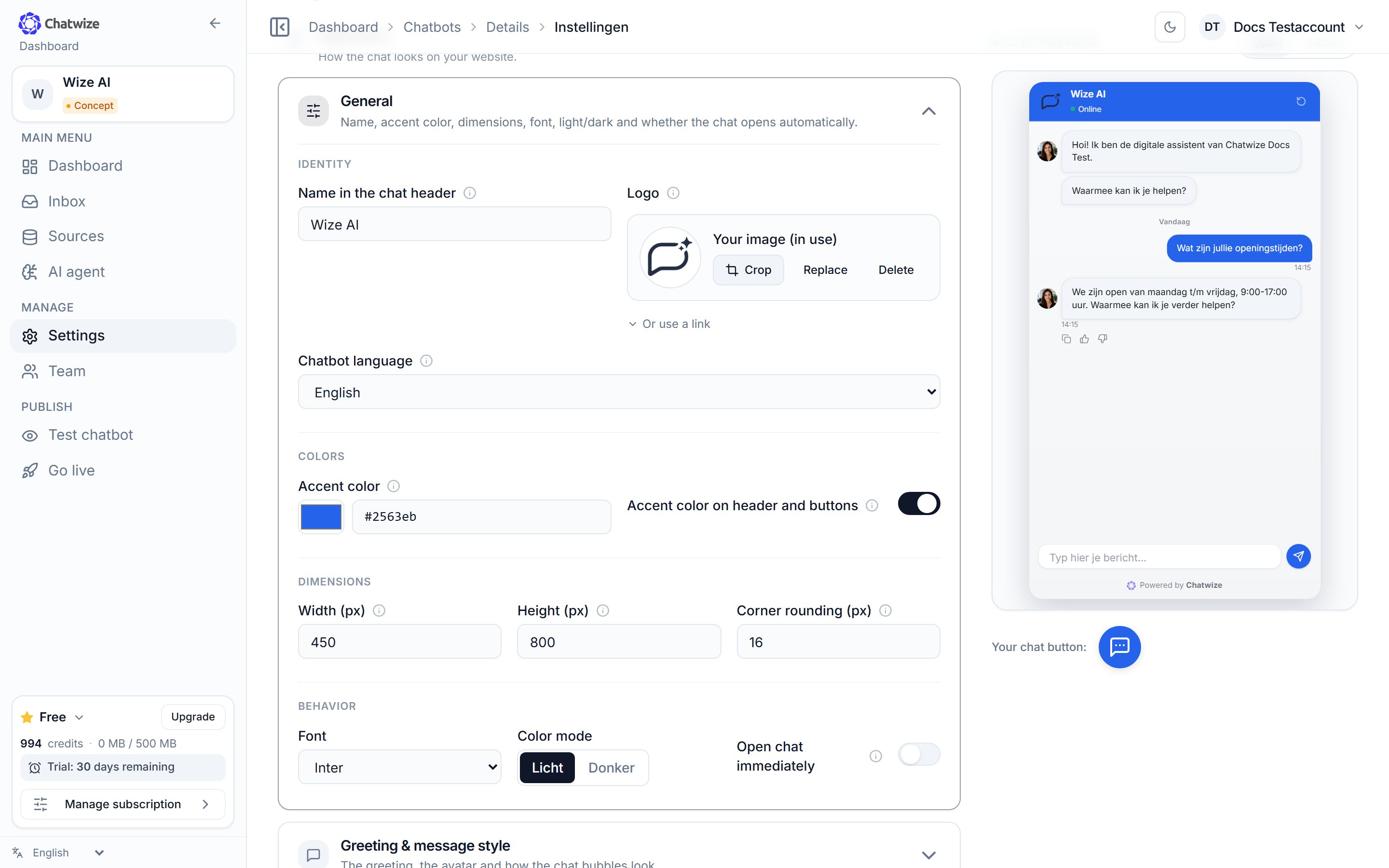 On the right is a **live preview** of the widget. At the bottom a bar appears to
save or discard your changes.
## The sections under Appearance
Four blocks:
* **Identity** — logo, the name in the chat header and the chatbot language.
* **Colors** — accent color, whether it's also used on the header and
buttons, and light or dark mode.
* **Dimensions** — width, height, corner radius and font.
* **Behaviour** — whether the chat opens straight away on page load.
The first message visitors see and the avatar. Under **Chat bubbles** you set
the text size and the colors of the bot and visitor bubbles.
Clickable starter questions visitors see straight away.
The placeholder text, whether the send button is always visible, and whether
the field gets a border.
Show message times and date separators. Times follow the visitor's local
clock.
Turn the footer line under the chat on or off and set its text.
The floating button that opens the chat: shape, size and position.
The optional bubble that invites visitors to open the chat after a few
seconds.
## What else visitors see
The **Conversation** group holds two sections that shape the conversation itself:
* **Citations & copying** — whether the chatbot shows which source an answer came
from, and whether visitors can copy an answer.
* **Disclaimer** — a short text visitors see first.
## Personality & tone of voice
How the assistant *sounds* isn't set here but on the **AI agent** page. See
[AI agent](/en/ai-agent).
On the right is a **live preview** of the widget. At the bottom a bar appears to
save or discard your changes.
## The sections under Appearance
Four blocks:
* **Identity** — logo, the name in the chat header and the chatbot language.
* **Colors** — accent color, whether it's also used on the header and
buttons, and light or dark mode.
* **Dimensions** — width, height, corner radius and font.
* **Behaviour** — whether the chat opens straight away on page load.
The first message visitors see and the avatar. Under **Chat bubbles** you set
the text size and the colors of the bot and visitor bubbles.
Clickable starter questions visitors see straight away.
The placeholder text, whether the send button is always visible, and whether
the field gets a border.
Show message times and date separators. Times follow the visitor's local
clock.
Turn the footer line under the chat on or off and set its text.
The floating button that opens the chat: shape, size and position.
The optional bubble that invites visitors to open the chat after a few
seconds.
## What else visitors see
The **Conversation** group holds two sections that shape the conversation itself:
* **Citations & copying** — whether the chatbot shows which source an answer came
from, and whether visitors can copy an answer.
* **Disclaimer** — a short text visitors see first.
## Personality & tone of voice
How the assistant *sounds* isn't set here but on the **AI agent** page. See
[AI agent](/en/ai-agent).