

Where to find it
1
Open your chatbot
From Chatbots, click the chatbot you want to work on.
2
Open Sources
In the left sidebar, under Main menu, click Sources.
3
Open the Add tab
At the top are Overview and Add. Click Add. The first time, you
confirm the one-off terms.
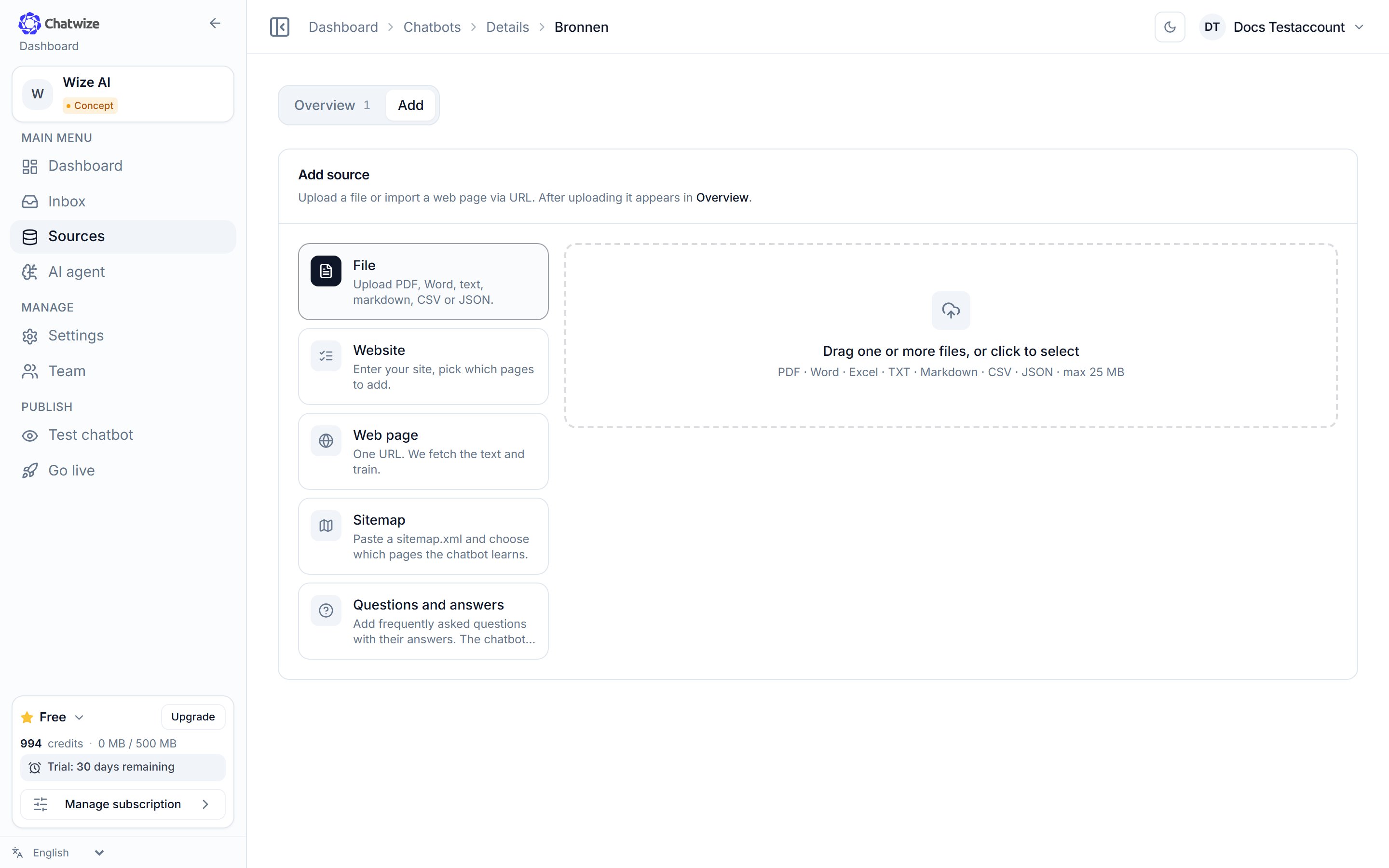
Sources → Add. Choose how you want to add content.
Ways to add content
File
Upload PDF, Word (.docx), Excel (.xlsx), text, Markdown, CSV or JSON, up to
25 MB per file.
Website
Enter your site, Chatwize finds the pages and you tick which ones to add.
Web page
One URL, Chatwize fetches the text and trains on it.
Sitemap
Paste a sitemap.xml. You see the pages found and choose which to add.
Questions and answers
Paste questions and answers; the chatbot learns them as an FAQ.
Only the modern Office formats work: .docx and .xlsx. The old
.doc and
.xls files are rejected; re-save those in the new format first.Managing sources
Your sources appear under the Overview tab once they’re processed. That’s also where you delete them, or download the original document again. Your usage and what’s left is shown at the bottom of the left sidebar.Keeping answers accurate
Use structured content
Use structured content
Headings, short paragraphs and lists are easier to search than walls of text.
Keep it current
Keep it current
Is a source out of date? Update it or remove it under Overview, so the
bot stops answering from it.
Add question-and-answer pairs
Add question-and-answer pairs
If your website doesn’t clearly answer a common question, add a
question-and-answer pair for it. That’s the fastest way to fix a weak
answer.
Don't add everything
Don't add everything
Irrelevant or duplicate pages dilute the results.