

Set Up Human Escalation Agent
Go to Customizations tab. Under the “Settings” section, Click “Human Support Handover”.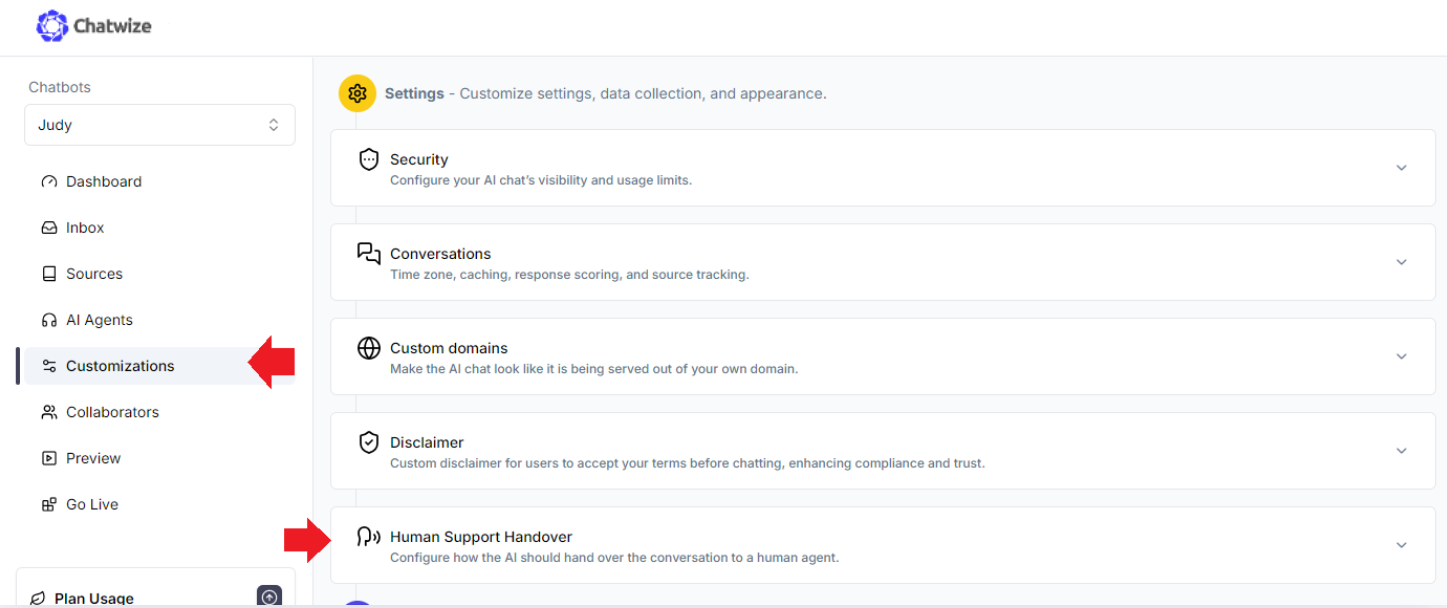
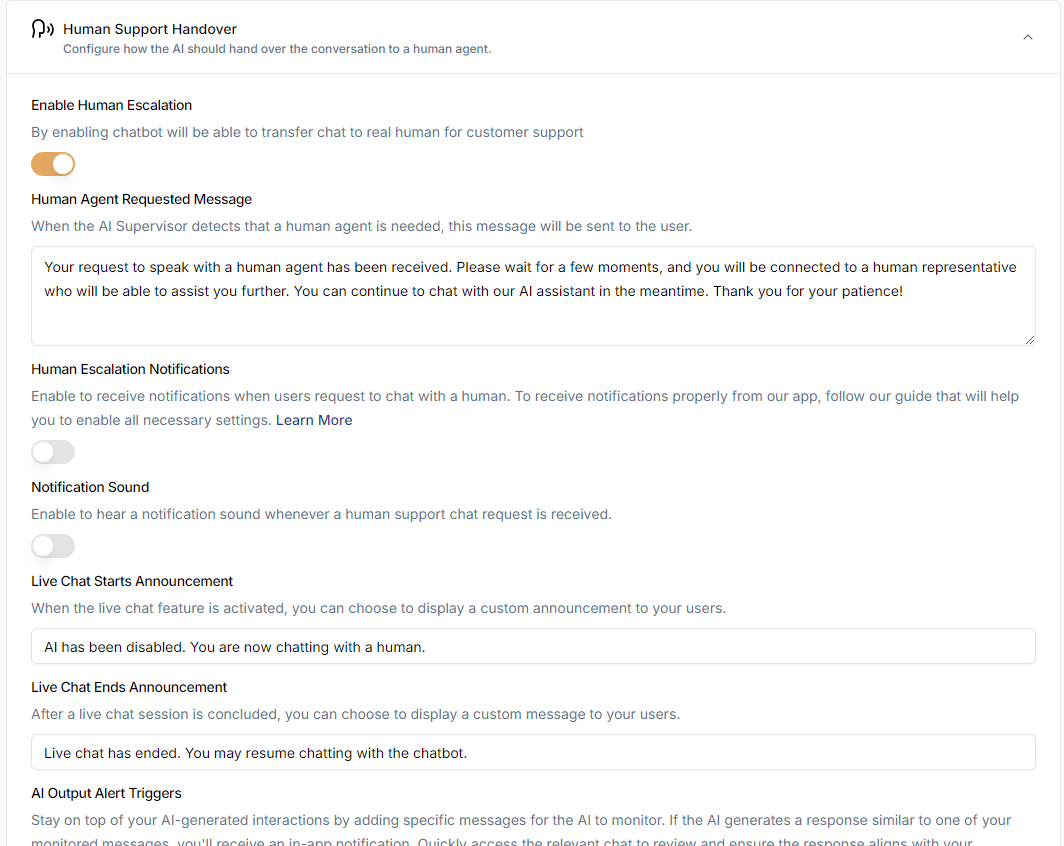
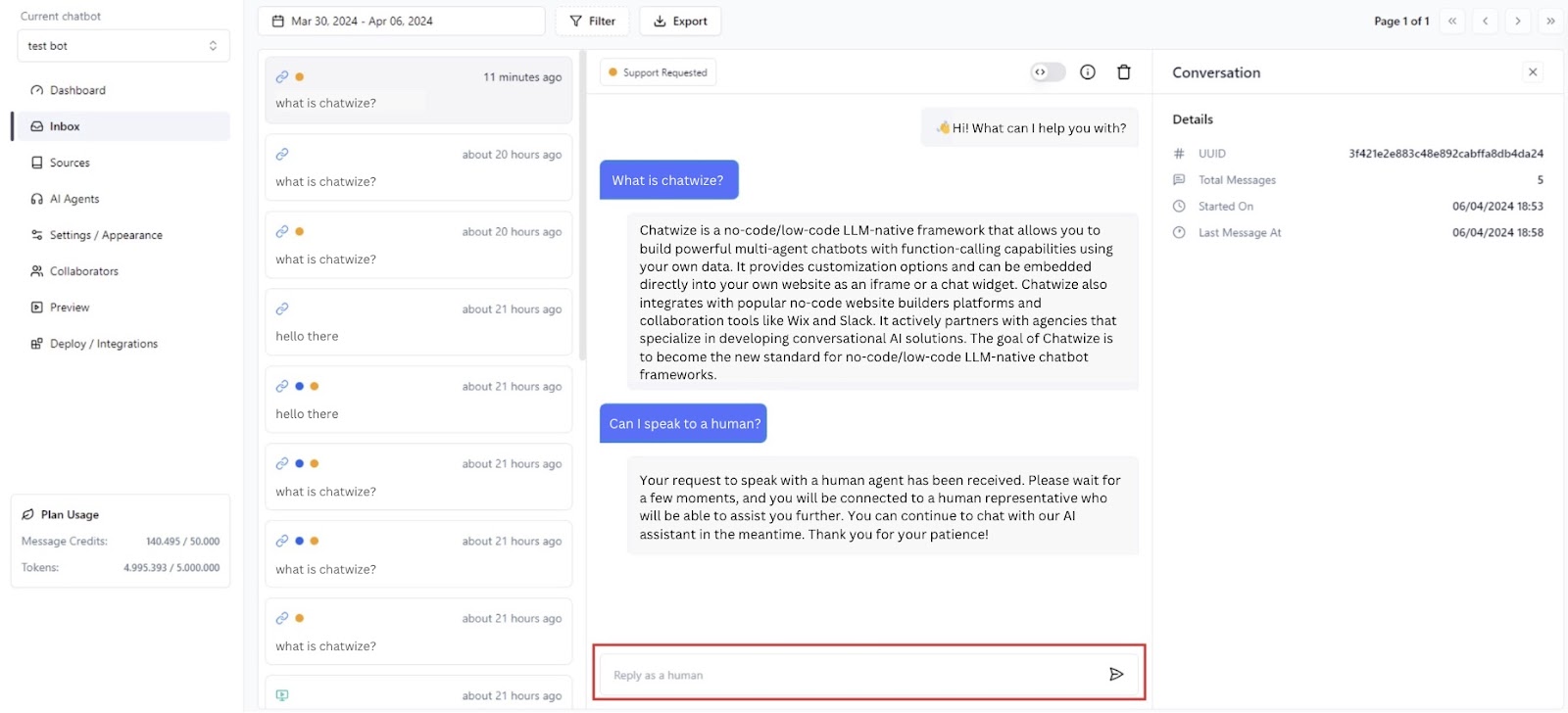
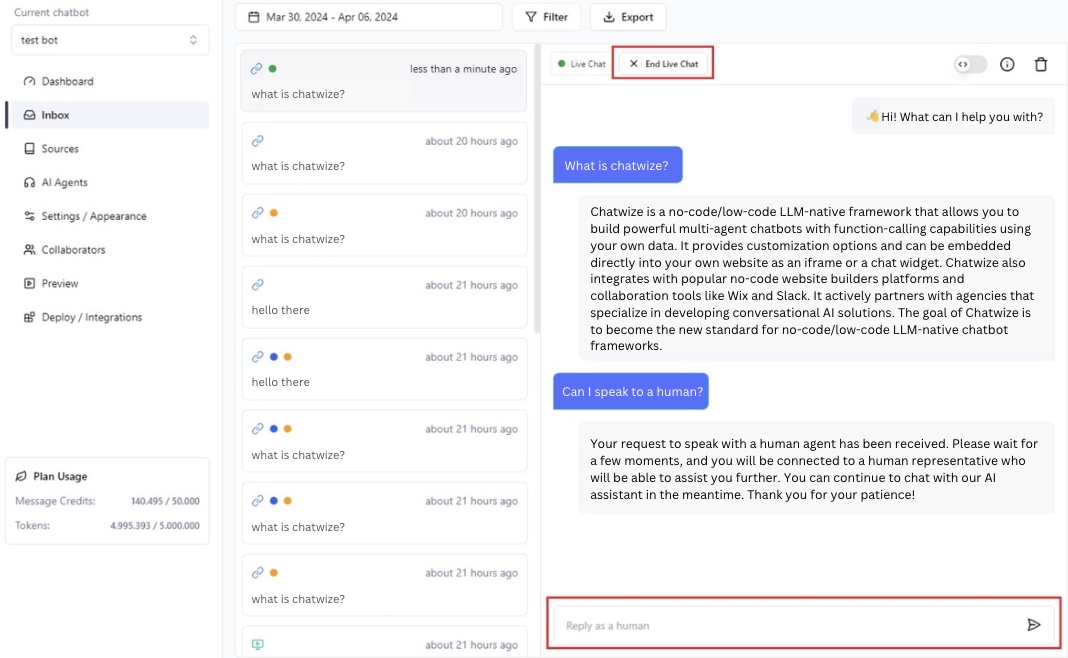
Enable Human Support Notifications
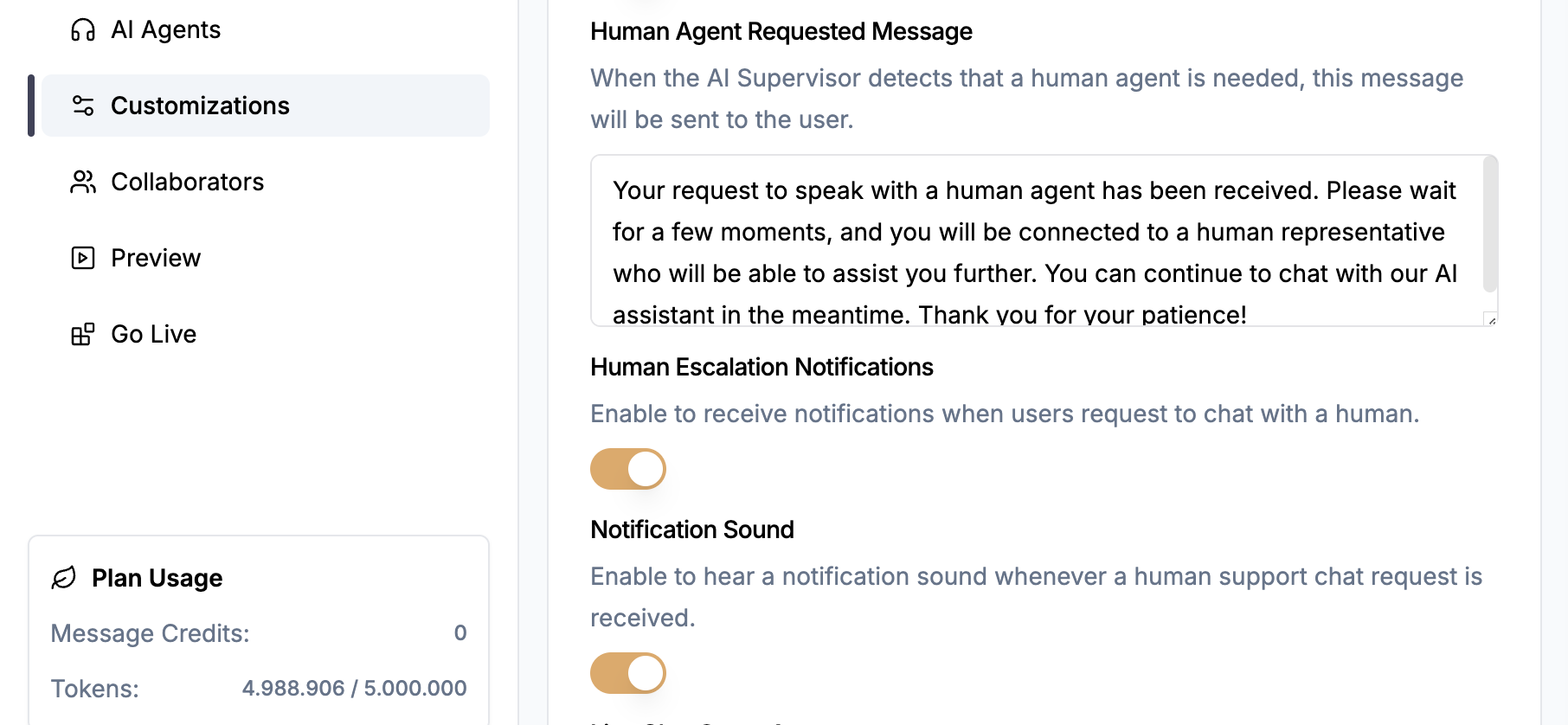
To receive alerts on human support requests, follow the steps below.Turn on Alert Modes
- Go to Customizations tab on the left navigation bar.
- Enable Human Escalation Notifications toggle - This ensures that notifications related to user support requests are activated.
- Enable Notification Sound - Activate this option if you wish to receive an audible alert along with the notifications.
Browser Permissions
Each web browser manages permissions for notifications and sounds on a per-website basis. To ensure that you receive notifications properly, you’ll need to enable both permissions within your browser settings. To proceed forward:- Launch your browser where you will use Chatwize platform.
- Enable your browser permissions by choosing option bellow:
Google Chrome
Google Chrome
1
Settings
Click on the button near url in the top-left corner, then select “Site
settings”.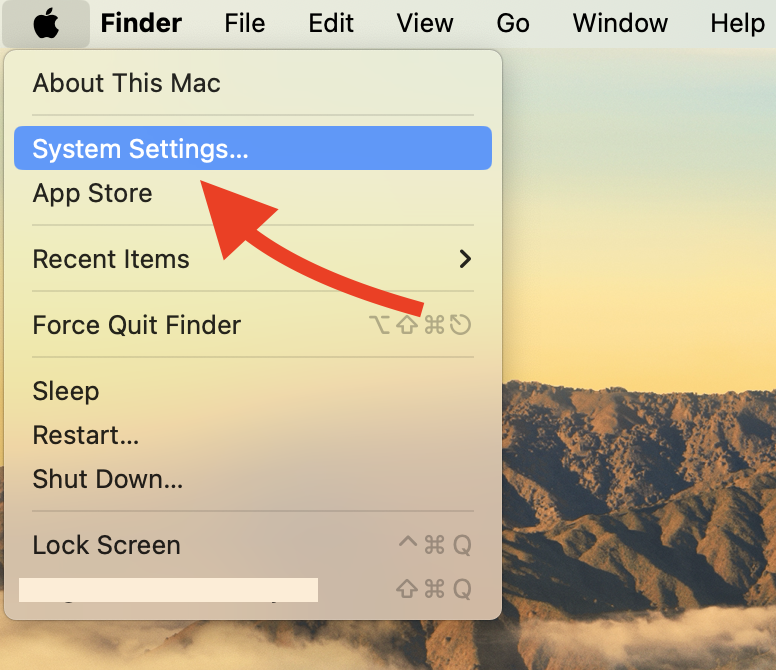
2
Enable permissions
Make sure that “Notifications” and “Sound” are set to Allow in
“Permissions settings”.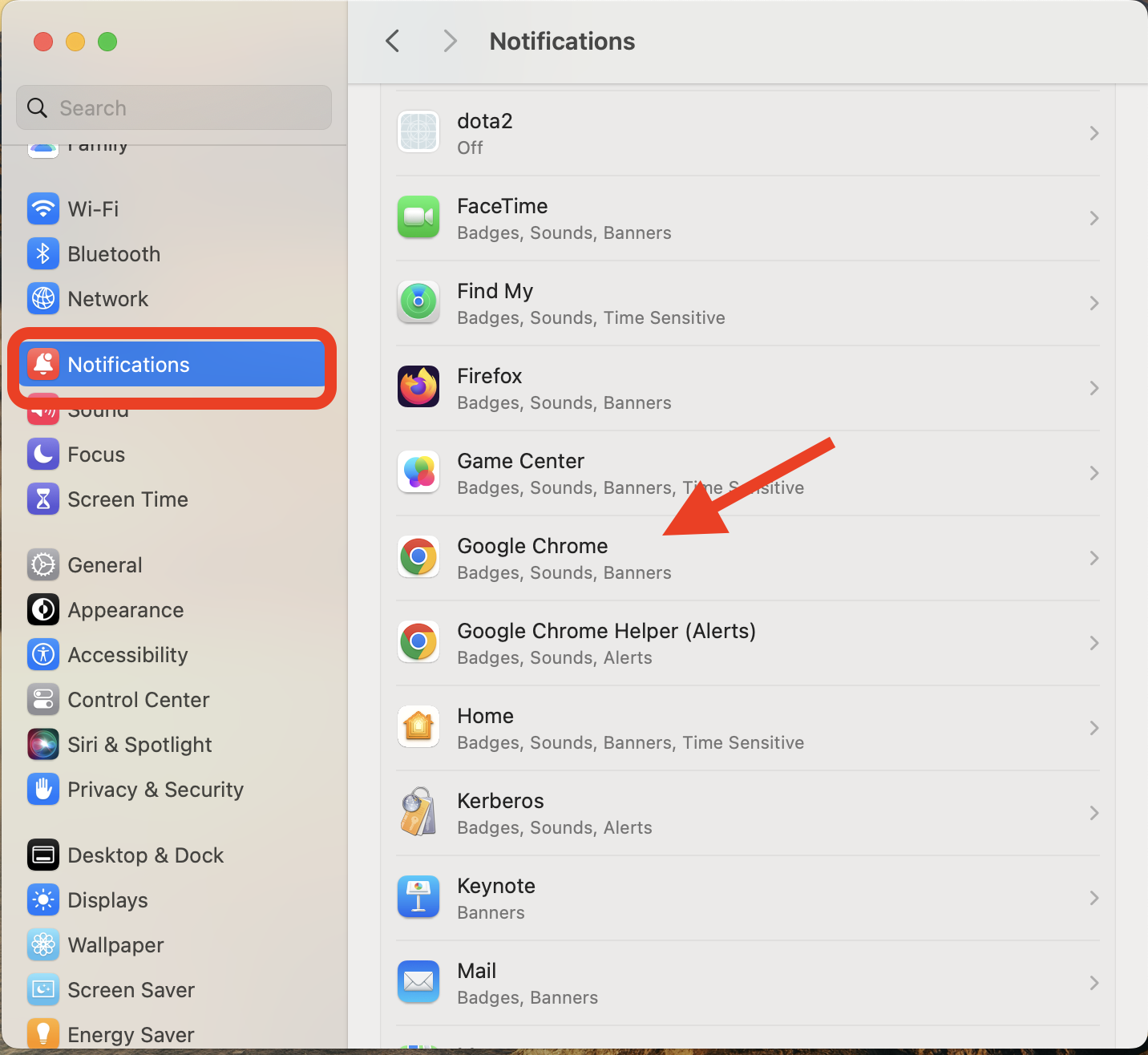
Firefox
Firefox
1
Settings
Click on the button near url in the top-left corner, then select
“Protection settings”.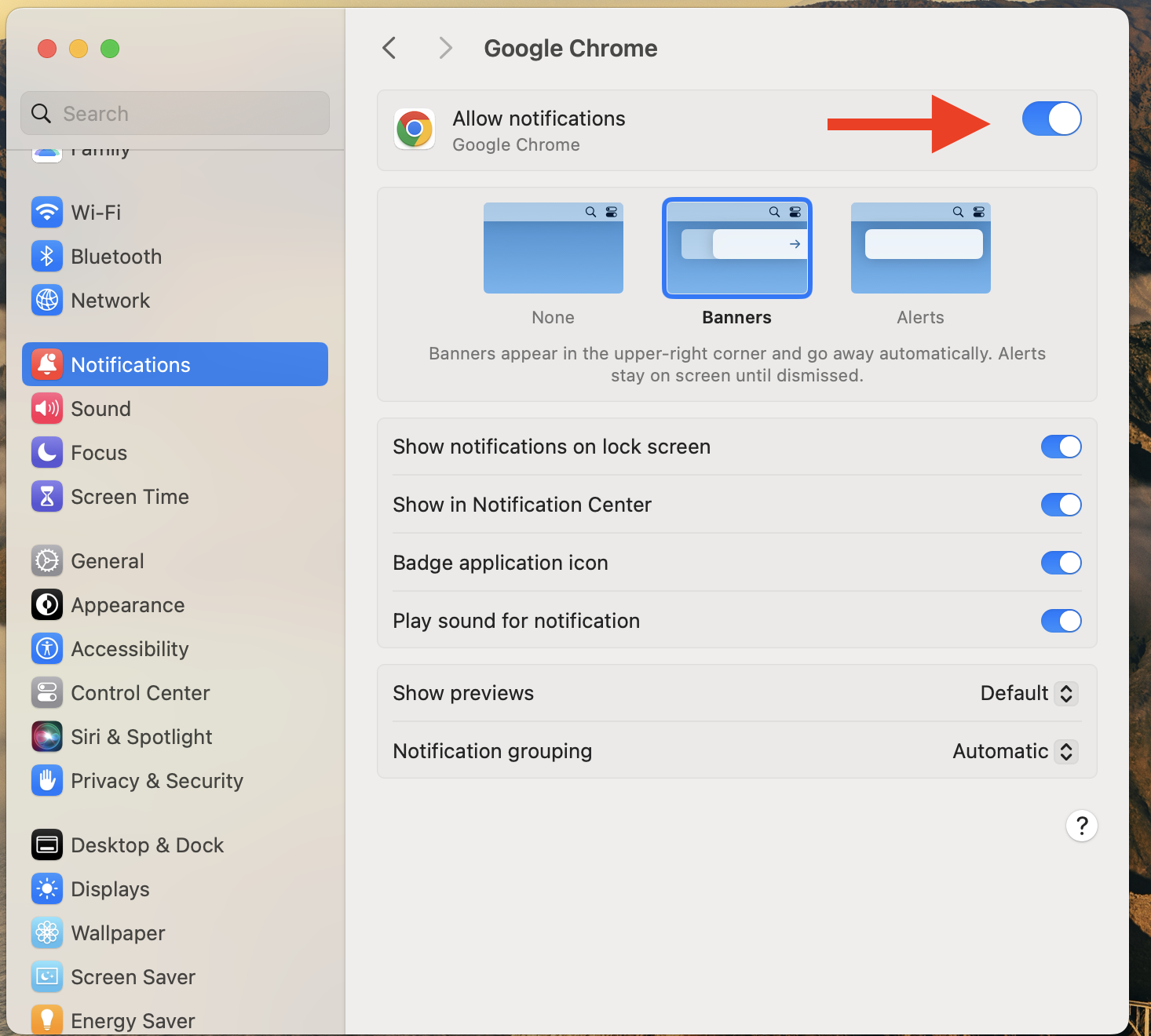
2
Unblock Chatwize
Scroll to “Permissions” and adjust the default settings for “Speaker
Selection” and “Notifications”. Ensure that the Chatwize platform is
not blocked for both options.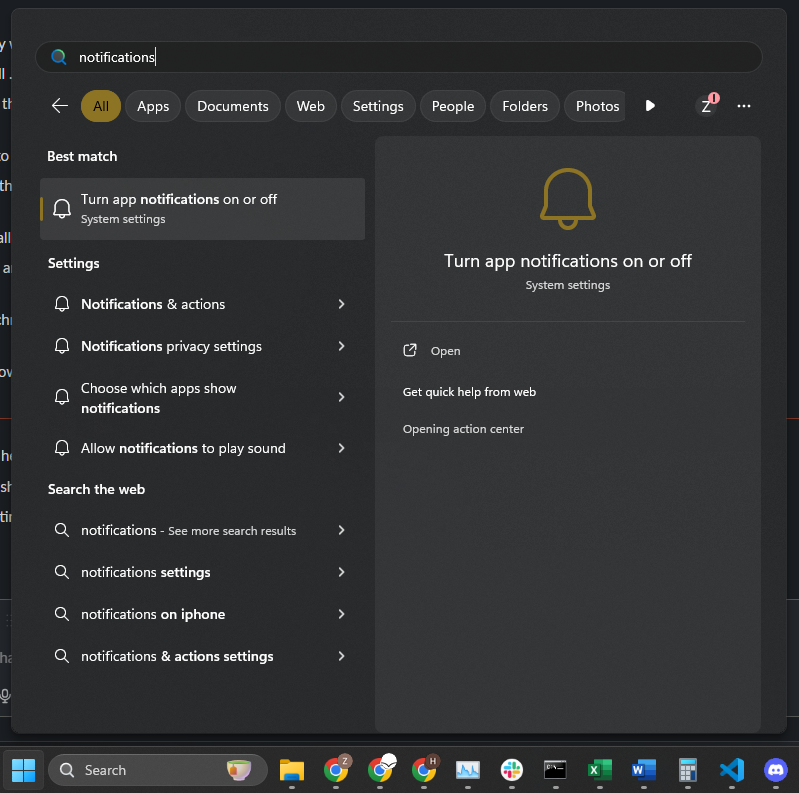
Microsoft Edge
Microsoft Edge
1
Settings
Click on the button near url in the top-left corner, then select
“Permissions for this site”.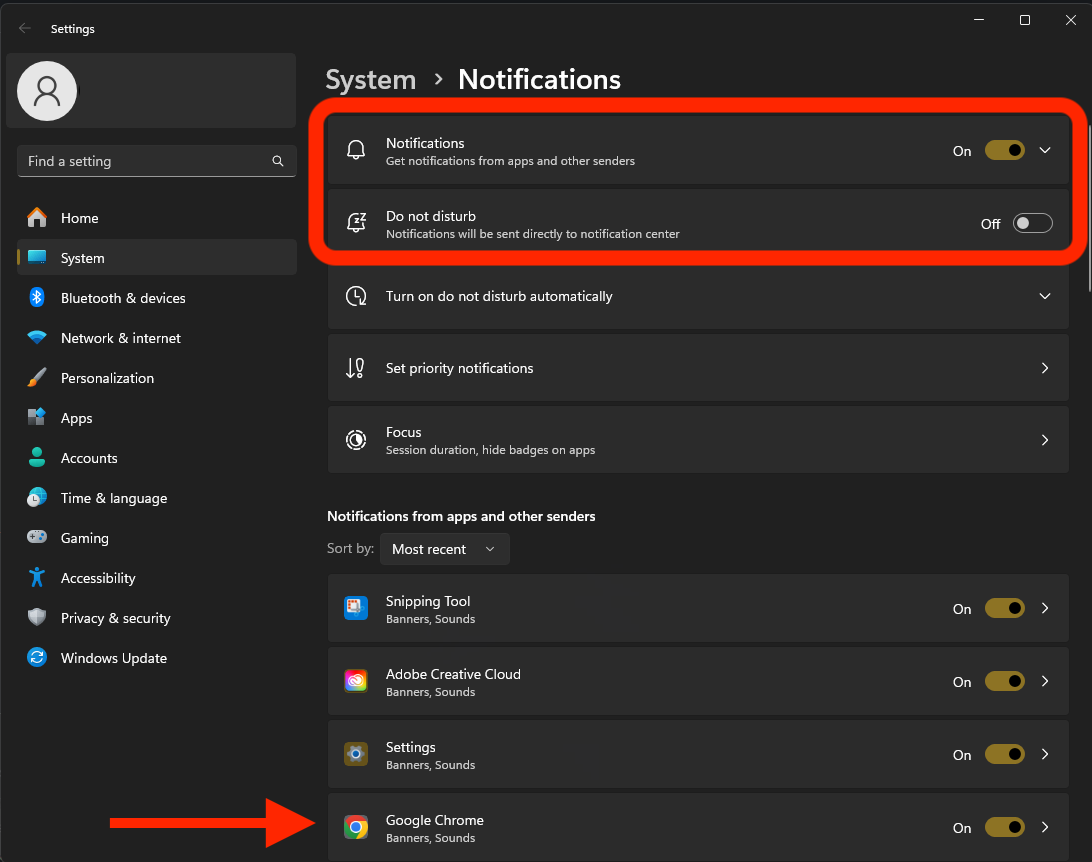
2
Enable permissions
Make sure that “Notifications” are set to Allow in “Permissions settings”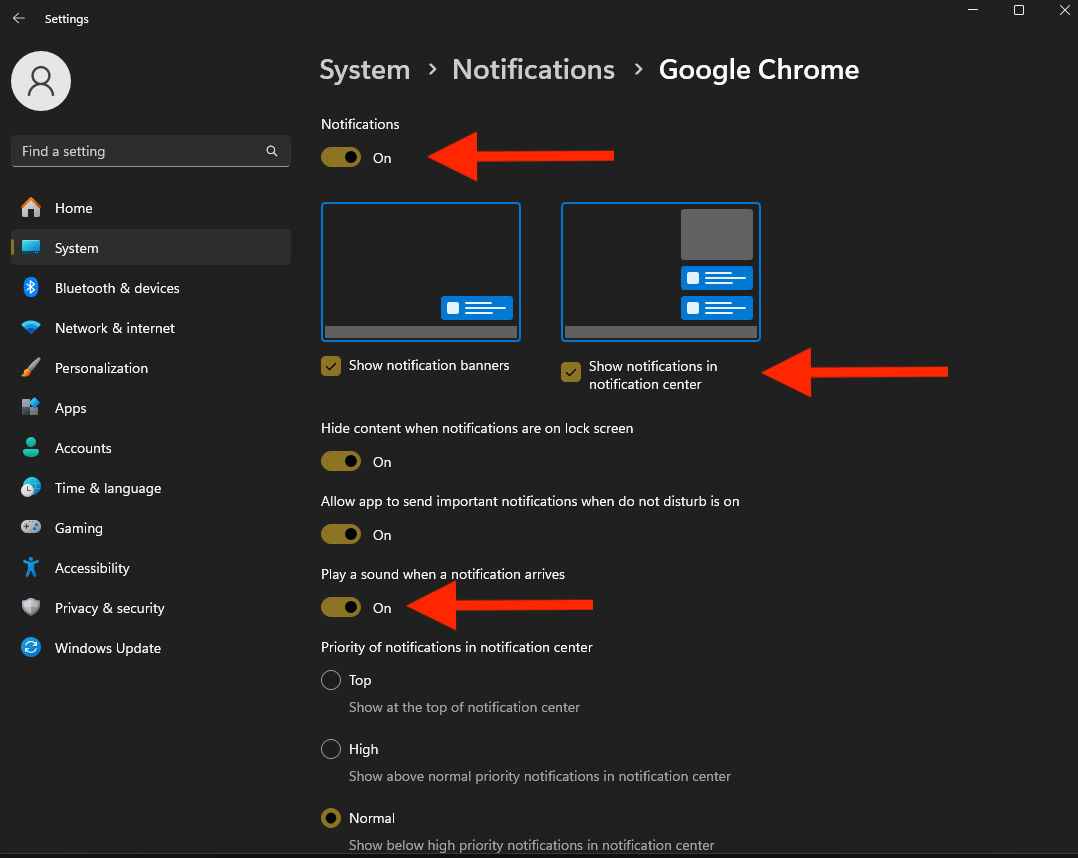
Safari
Safari
1
Chatwize settings
Click on “Safari” in the top-left corner of your screen, then select
“Settings for app.chatwize.ai”.
2
Enable pop-ups
Make sure that “Pop-up Windows” are set to Allow.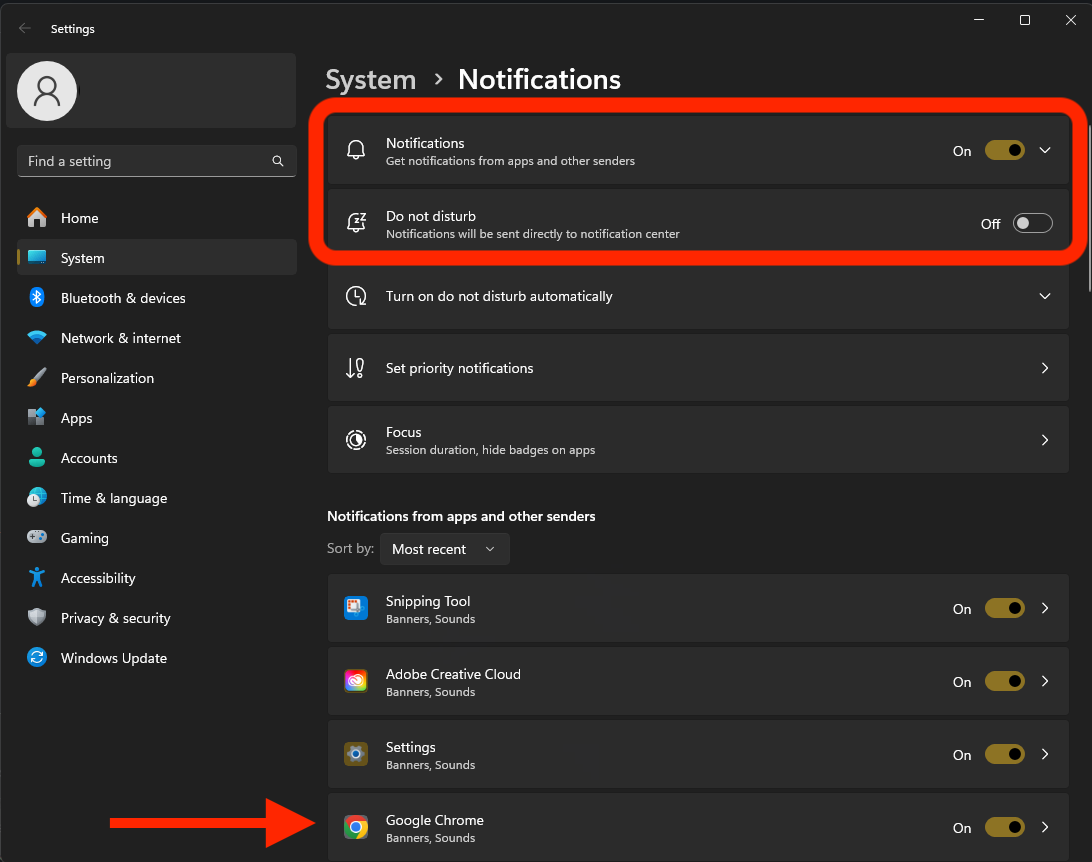
3
Settings
Click on “Safari” in the top-left corner of your screen, then select
“Settings”.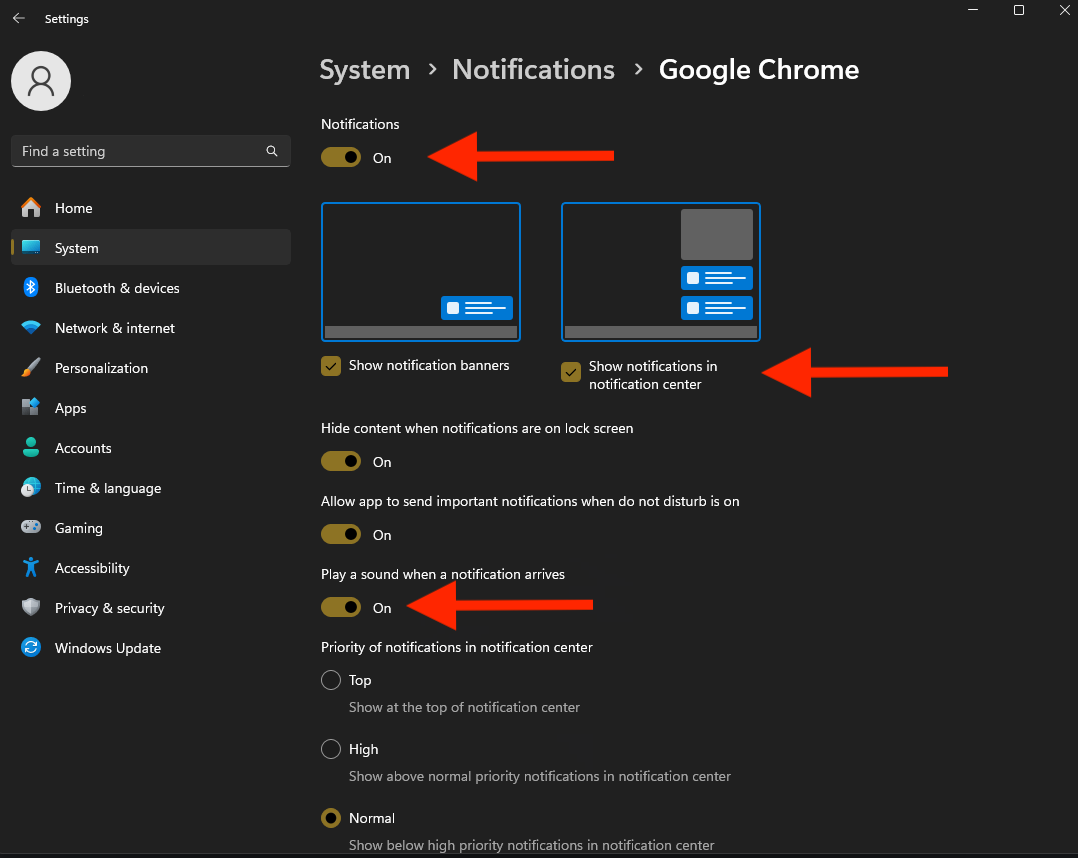
4
Enable notifications
In the “Websites” tab, choose “Notifications” option and make sure that
permissions are set to “Allow” for app.chatwize.ai
Operating System Permissions
Operating systems also have their own permissions that allow setting restrictions to notifications for different apps, including browsers. To enable notifications, choose your operating system below:If you are using Safari, you do not need to follow these steps.
Apple
Apple
1
Settings
Click on the “Apple” in the top-left corner, then select “System
Settings”.
2
Browser notifications
Choose “Notifications” option and select the browser you wish to use.
3
Enable notifications
Make sure that “Allow notifications” option is enabled.
Windows
Windows
1
Settings
In the search bar, type “notifications” and select the “Turn app
notifications on or off” option from the search results.
2
System notifications
Enable system notifications (Optional) and select your preferred
browser under “Notifications from apps and other senders” list.
3
Browser notifications
Make sure that “Notifications” are On for your browser.